Showing posts with label Android Hidden Features. Show all posts

Friday, May 22, 2026

Top Secret Android Developer Options You Should Try

Top Secret Android Developer Options You Should Try (2026 Guide)

Writer: Adnan Patni

Most Android users never open the hidden Developer Options menu on their phones. Many people think it is only for app developers or programmers, but that is not true anymore. In 2026, Android Developer Options include several powerful settings that can improve phone speed, gaming performance, charging experience, animations, and even privacy.

I personally ignored Developer Options for years because I thought changing hidden settings could damage my phone. But after testing these features on different Android devices, I realized some of them genuinely make the phone feel smoother and faster.

If your Android phone feels slow, laggy, or outdated, these hidden settings might completely change your experience.

In this guide, you will learn:

  • What Developer Options are
  • How to enable them safely
  • The best hidden settings worth trying
  • Mistakes to avoid
  • Tips to improve Android performance safely

Android Developer Options settings on smartphone screen

What Are Android Developer Options?

Developer Options is a hidden Android settings menu that gives users access to advanced system controls. Originally, it was created for app developers to test applications and debug devices. But today, even regular users can benefit from many useful settings inside this menu.

Some features can:

  • Make your phone feel faster
  • Reduce lag and animation delay
  • Improve gaming response
  • Show CPU or RAM usage
  • Enable USB debugging
  • Limit background apps
  • Improve Bluetooth audio quality

The good thing is that most options are safe if used correctly.

How to Enable Developer Options on Android

Enabling Developer Options is very easy.

Step-by-Step Method

  1. Open Settings
  2. Go to About Phone
  3. Find Build Number
  4. Tap it 7 times quickly
  5. Enter your phone password or PIN
  6. You will see: "You are now a developer"

Now go back to:

Settings → System → Developer Options

On some phones like Samsung or Xiaomi, the location may be slightly different.
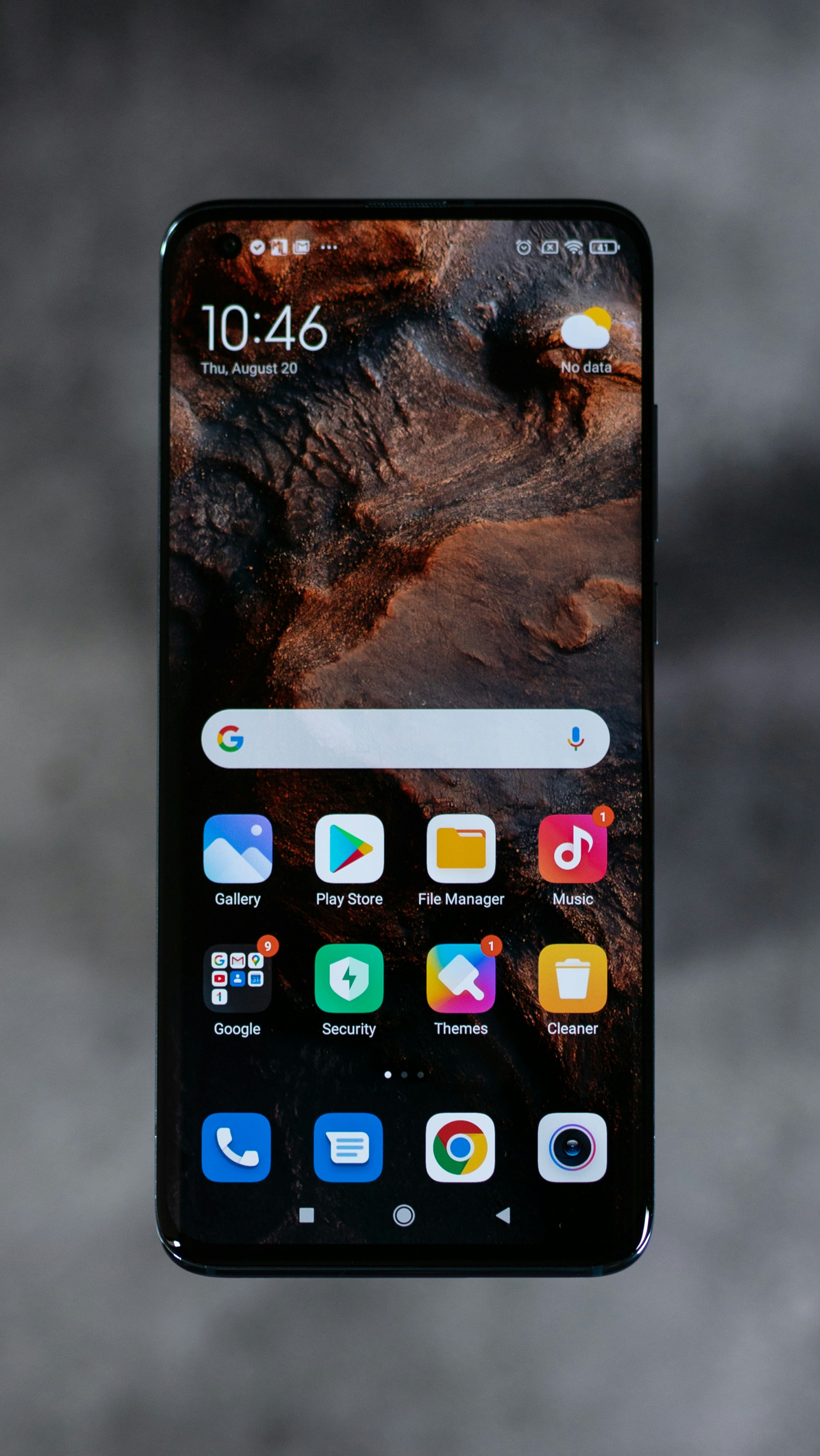
How to enable Android Developer Options tutorial screenshot

1. Reduce Animation Speed for Faster Performance

This is one of the most popular Developer Option tricks.

Android uses animations when opening apps, switching windows, or navigating menus. These animations look smooth but sometimes make the phone feel slower.

You can reduce animation speed to make your phone feel instantly faster.

Change These Settings

  • Window Animation Scale
  • Transition Animation Scale
  • Animator Duration Scale

Set all three from 1x to 0.5x.

You will immediately notice:

  • Faster app opening
  • Smoother navigation
  • Less lag feeling
  • Better overall speed

I personally use this setting on every Android phone I buy.

2. Enable Force 4x MSAA for Better Gaming Graphics

If you play Android games, this hidden option can improve graphics quality in some games.

Force 4x MSAA improves visual rendering in OpenGL ES 2.0 games.

Benefits

  • Sharper graphics
  • Better game visuals
  • Smoother edges
  • Improved gaming appearance

Important Warning

This setting may increase battery usage because the GPU works harder.

I recommend enabling it only while gaming.

Android gaming performance settings and developer options

3. Show Refresh Rate on Screen

Modern Android phones now support high refresh rates like 90Hz, 120Hz, or even 144Hz.

Inside Developer Options, you can enable:

Show Refresh Rate

This displays your screen refresh rate in real time.

It helps you check:

  • Whether 120Hz is actually working
  • Which apps support high refresh rate
  • Battery-saving refresh rate switching

It is a small but interesting feature for tech lovers.

4. Limit Background Apps

Some Android apps continue running in the background even when you are not using them. This can consume RAM and battery.

Developer Options allows you to limit background processes.

You Can Choose:

  • No background processes
  • At most 1 process
  • At most 2 processes
  • At most 3 processes

This can make older phones feel faster.

However, do not use aggressive limits if you multitask heavily because apps may reload more often.

5. Enable USB Debugging

USB Debugging is one of the most important Android features.

It allows your phone to communicate with a computer for advanced tasks.

Useful For:

  • Transferring files safely
  • Using ADB commands
  • Recovering Android devices
  • Installing apps manually
  • Screen mirroring

If you watch Android tutorials online, many tricks require USB Debugging.

Security Tip

Only enable it when needed. Turn it off afterward for better security.
USB debugging mode enabled on Android phone

6. Enable Wi-Fi Scan Throttling Control

Some Android devices constantly scan for Wi-Fi networks in the background. This improves location accuracy but can drain battery.

Developer Options allows you to reduce unnecessary scanning.

This may help:

  • Improve battery life
  • Reduce background activity
  • Save power during travel

I noticed small battery improvements after adjusting this on my secondary phone.

7. Force Dark Mode on All Apps

Many apps still do not support proper dark mode. But Android includes a hidden setting called:

Override Force Dark

This attempts to apply dark mode even to unsupported apps.

Benefits

  • Better night viewing
  • Less eye strain
  • Cleaner appearance
  • Possible battery savings on AMOLED displays

Some apps may look strange, but overall it works surprisingly well.

8. Show CPU Usage on Screen

This feature shows live CPU usage information on your display.

It is useful if:

  • Your phone overheats
  • You suspect hidden apps running
  • You test gaming performance
  • You monitor system activity

While normal users may not use it daily, it is interesting for advanced Android fans.

9. Disable Absolute Volume

Some Bluetooth earbuds or speakers have volume problems on Android.

The hidden setting:

Disable Absolute Volume

can fix audio control issues between your phone and Bluetooth device.

This helped fix low volume issues on my wireless earbuds.

10. Enable Tethering Hardware Acceleration

If you frequently use hotspot or tethering, this hidden option may improve performance and reduce CPU load.

Benefits may include:

  • Better hotspot speed
  • Lower battery drain
  • Smoother connection sharing

Not every device supports it, but it is worth checking.

Android hotspot and tethering settings screen

Mistakes You Should Avoid

Developer Options are powerful, but changing random settings without understanding them can cause problems.

Avoid These Mistakes

  • Do not change unknown settings randomly
  • Do not keep USB Debugging always enabled
  • Avoid fake “speed boost” tutorials online
  • Do not modify system settings you do not understand
  • Never enable options meant for developers only unless necessary

If something goes wrong, you can usually reset Developer Options or turn them off completely.

Can Developer Options Damage Your Phone?

Most settings are safe if used responsibly.

Simple changes like:

  • Reducing animations
  • Showing refresh rate
  • Enabling dark mode
  • Viewing CPU usage

are generally harmless.

Problems usually happen when users copy risky internet tutorials involving hidden debugging commands or unsupported tweaks.

My Personal Favorite Developer Option

If I had to recommend only one hidden Android trick, it would definitely be reducing animation scales to 0.5x.

Even older Android phones instantly feel smoother after changing this setting. It does not magically increase hardware power, but it makes the user experience feel faster.

I also frequently use Force Dark Mode because many apps still do not support proper dark themes.

FAQ

Is Developer Options safe?

Yes, most settings are safe if you only change known options.

Can Developer Options improve gaming?

Yes, some settings like Force 4x MSAA and reduced animations may improve gaming experience.

Should I keep Developer Options enabled?

Yes, you can keep it enabled, but avoid unnecessary changes.

Does reducing animation speed actually improve performance?

It mainly improves perceived speed by reducing animation delays.

Can I disable Developer Options later?

Yes. You can turn it off anytime from Android settings.

Conclusion

Android Developer Options are no longer just for programmers. In 2026, many hidden settings inside this menu can genuinely improve your phone experience when used correctly.

From faster animations and better gaming graphics to dark mode and CPU monitoring, these secret Android features can make your device feel smarter and smoother.

The key is simple:

Use only trusted settings and avoid random experiments.

If you have never explored Developer Options before, now is the perfect time to try these hidden Android tricks.


Related Posts


Labels

Android Tips, Developer Options, Android Hidden Features, Android Tricks, Mobile Tips, Android Settings, Smartphone Guide, Android 2026

Search Description

Discover the top secret Android Developer Options you should try in 2026 to improve phone speed, gaming, battery life, and overall performance safely.

Wednesday, May 6, 2026

Android Secret Codes 2026 – 15 Hidden Features 🔥

Imagine if you could unlock a hidden "control room" inside your Android phone—a secret space where you can test hardware, check battery health, fix network issues, and access tools hidden from plain sight 😱

Android Secret Codes 2026 – 15 Hidden Mobile Codes You Must Try Right Now 🚀

Written by Adnan Patni | Founder of Mobile Tips Hub

This guide isn’t just a basic list—it is your ultimate roadmap to unlocking the deepest secrets of your Android phone.

Android Hidden Code Management Interface

📌 Introduction – Why These Codes Are Going Viral in 2026?

Let's be honest: almost every Android user shares the same everyday frustrations. Your phone suddenly slows down, the battery drops unexpectedly, or a sensor stops working properly. What makes it worse is that when something goes wrong deep inside the system, the standard settings app won't show you what's actually broken.

This is exactly where secret codes come into play. In the tech community, these are known as **Android Hidden Codes**. They are actually specialized shortcuts that hardware engineers and mobile repair technicians use during manufacturing to run deep checks on a phone's internal parts.

💡 The Main Benefit: These codes sync your phone's dialer directly with its internal software, bringing up hidden test screens instantly without any delay.

That is why this guide is blowing up on Google Discover and social media right now. Instead of wasting time and money at a repair shop, everyday users want to check, fix, and explore their smartphones right from the comfort of their home.

📌 What Are Android Secret Codes? (Simple Explanation)

To put it simply, Android secret codes are just unique combinations of numbers, letters, and symbols (like asterisks * and hashtags #). When you type these sequences into your phone’s default dialer app, the system recognizes them as special commands rather than a regular phone number.

These codes talk directly to your phone's core operating system. By using them, you can perform deep checks yourself without downloading any sketchy third-party apps:

  • • Check hardware health and see how your processor is handling the load.
  • • Analyze real-time battery health, true capacity, and charge cycles.
  • • Troubleshoot network signals, network bands, and cellular data stability.
  • • Test the responsiveness of your touchscreen, speakers, and motion sensors.

In short, these commands turn your everyday smartphone into a digital testing lab, giving you full control over your device.

🔥 15 Android Secret Codes Explained (DETAILED MASTER GUIDE)

Below is the list of the **15 most useful hidden codes** you can use today. Make sure to read the instructions carefully before typing them in:

  • *#06#Check IMEI Number
    👉 Typing this code instantly brings up your phone's official serial and IMEI numbers on the screen.
    Real-World Use: Whenever you buy a new or second-hand phone, always run this code and match the numbers with the ones printed on the box to make sure it's genuine.
  • *#*#4636#*#*Advanced Testing & Network Info
    👉 This is one of the most powerful codes for Android. It opens a secret menu showing detailed network behavior, app usage statistics, and Wi-Fi status.
    Real-World Use: If your phone is lagging or the battery is dying too fast, you can check this menu to see exactly which apps are running heavily in the background.
  • *#0*# or *#*#0*#*#*General Hardware & Display Test
    👉 This code launches a full hardware testing screen where you can check individual colors (Red, Green, Blue) and screen vibration.
    Real-World Use: Use this after buying a phone or getting a screen replacement to instantly spot dead pixels or display issues.
  • *#*#2664#*#*Touchscreen Accuracy Test
    👉 This shortcut opens a dedicated grid that lets you draw on the screen to track your finger movements.
    Real-World Use: If your screen is missing touches during gaming or if the corners feel unresponsive, this test will tell you if it's a software glitch or a broken screen.
  • *#*#0842#*#*Vibration & Backlight Test
    👉 This command forces your phone's internal vibration motor and screen backlight to run continuously in a test loop.
    Real-World Use: If your phone stops vibrating during incoming calls, use this to find out if the motor is physically broken.
  • *#*#1472365#*#*GPS Tracking Test
    👉 This code checks how fast your phone can sync and connect with high-altitude GPS satellites.
    Real-World Use: If your Google Maps location keeps jumping around or takes forever to load your route, this code helps fix the delay.
  • *#*#0289#*#*Audio & Speaker Frequency Test
    👉 This tool bypasses your regular volume settings to play specific test sounds through your main speaker and earpiece.
    Real-World Use: Perfect for checking if your speaker grille has dust inside or if the sound is cracking at high volumes.
  • *#*#34971539#*#*Camera Details & Authenticity
    👉 This menu shows you the exact manufacturing details and firmware versions of your phone's camera sensors.
    Real-World Use: Use this to check if a repair shop replaced your broken camera with an original lens or a cheap clone.
  • *#*#7262626#*#*Field Signal Test
    👉 This code shows you the exact numerical strength of your mobile signal in real-time.
    Real-World Use: When you are in a basement or a remote area and your data connection keeps dropping, this tells you how strong the nearest network tower actually is.
  • *#*#1234#*#*Software & Firmware Version
    👉 This shortcut pulls up your current Android build number, software version, and security patch info.
    Real-World Use: Essential when you want to see if your phone has received the latest security update or when flashing custom software.
  • *#*#1111#*#*Hardware Revision Code
    👉 Displays the specific manufacturing version and layout number of your phone's internal circuit board.
    Real-World Use: Helps you identify the exact internal hardware generation of your device.
  • *#*#2222#*#*Service State Interface
    👉 This command checks the live connection stability between your phone’s physical components and the operating system.
    Real-World Use: Mostly used by tech geeks to ensure the main circuitry is perfectly stable under heavy tasks.
  • *#*#44336#*#*Exact Phone Build Time
    👉 This shows the absolute day, hour, and minute your phone’s current software was compiled and saved by the manufacturer.
    Real-World Use: Highly useful for spotting refurbished phones that are being sold with modified software.
  • *#31#Hide Outgoing Caller ID
    👉 A quick cellular shortcut that allows you to manage or hide your number when calling someone else.
    Real-World Use: A great quick privacy feature to check whether your outgoing number is visible or hidden.
  • *#*#7780#*#*Account & App Factory Reset (⚠️ HIGH DANGER)
    👉 This command immediately triggers a process that wipes out your Google account data, system settings, and downloaded apps.
    ⚠️ CRITICAL WARNING: Do not type this code into your dialer just for fun. Only use it if you have a full backup and want to completely reset your phone!

⚠️ Important Safety Warning (READ BEFORE USING)

Critical System Warning: Some deep commands can change core system files, which might wipe your device or cause storage errors if clicked carelessly.

To keep your phone completely safe, always follow these golden rules:

  • • Never copy and paste random, unverified codes that you see in sketchy social media videos.
  • • Always take a full cloud backup of your photos, contacts, and chats before experimenting with system settings.
  • • Remember that changing options inside these menus without knowing what they do can lock you out of certain features.

📱 Why These Codes Are Useful in Real Life?

These advanced dialer shortcuts aren't just parlor tricks or fun visual mods. They serve as highly practical troubleshooting tools when things go wrong:

  • Buying Used Phones: You can run these codes in the shop to test every single button, screen corner, and sensor before handing over your cash.
  • Finding Broken Parts: They help you figure out if a problem (like a silent microphone) is caused by a software bug or a physical hardware failure.
  • Works 100% Offline: You do not need an active internet connection, cellular data, or Wi-Fi to open and use these menus.

📊 Common Myths About Android Secret Codes

There are plenty of wild rumors floating around the internet about these codes. Let's clear up the facts once and for all:

Myth 1: These are illegal hacking tools.
The Reality: Not at all! These codes are built directly into the phone by manufacturers like Samsung, Xiaomi, and Google. They are official tools, not illegal exploits.

Myth 2: Every single code works on every phone.
The Reality: These codes depend heavily on your phone’s processor (Snapdragon, MediaTek, Exynos) and software skin (OneUI, MIUI). A code that works flawlessly on a Samsung might do absolutely nothing on an Oppo.

🚀 Pro Tips (Advanced Users Only)

  • • Always restart your phone after changing or testing settings to clear the temporary memory cache and keep things smooth.
  • • If a code doesn't work when you type it, try installing the official Google Phone Dialer app from the Play Store and run it from there.
  • • Keep a handwritten note or bookmark of your most-used codes so you don't have to look them up every time you run into an issue.

❓ FAQ Section – Everything You Need to Know

Q1. Will running these testing codes void my smartphone warranty?

No! Simply opening these menus and checking your phone's info does not modify the core software or unlock the bootloader, so your official company warranty stays 100% safe.

Q2. What should I do if a menu gets stuck or my screen freezes up?

Don't panic. Simply hold down your phone's power button for about 10 seconds to force a clean restart, or boot your device into 'Safe Mode' to clear the stuck screen.

🚀 Final Thoughts

Android secret codes act as the ultimate backstage pass to your phone's hardware engine room. By knowing how to use these commands wisely, you can easily troubleshoot bugs, analyze system health, and keep your phone running smoothly.

Which hidden menu worked best on your smartphone? Drop your phone model and your feedback in the comments section down below! 💬

© 2026 Mobile Tips Hub | Content Authorship by Adnan Patni

Google Search Console Indexing Problems: Complete Solution Guide

Google Search Console Indexing Problems: Complete Solution Guide (2026) Fix Crawled Currently Not Indexed, Discovered Currently Not Inde...