Showing posts with label Android 2026. Show all posts

Friday, May 22, 2026

Top Secret Android Developer Options You Should Try

Top Secret Android Developer Options You Should Try (2026 Guide)

Writer: Adnan Patni

Most Android users never open the hidden Developer Options menu on their phones. Many people think it is only for app developers or programmers, but that is not true anymore. In 2026, Android Developer Options include several powerful settings that can improve phone speed, gaming performance, charging experience, animations, and even privacy.

I personally ignored Developer Options for years because I thought changing hidden settings could damage my phone. But after testing these features on different Android devices, I realized some of them genuinely make the phone feel smoother and faster.

If your Android phone feels slow, laggy, or outdated, these hidden settings might completely change your experience.

In this guide, you will learn:

  • What Developer Options are
  • How to enable them safely
  • The best hidden settings worth trying
  • Mistakes to avoid
  • Tips to improve Android performance safely

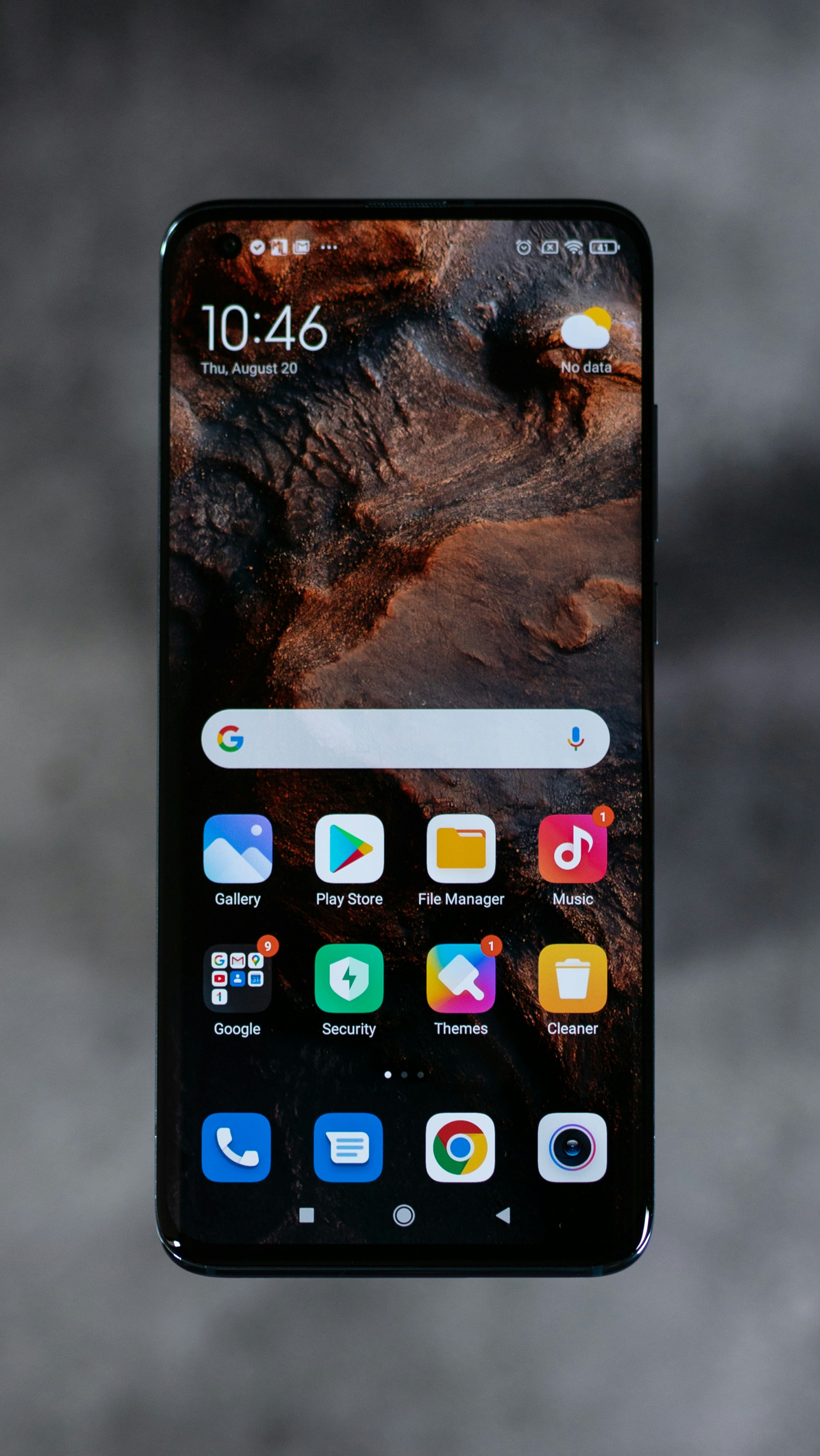
Android Developer Options settings on smartphone screen

What Are Android Developer Options?

Developer Options is a hidden Android settings menu that gives users access to advanced system controls. Originally, it was created for app developers to test applications and debug devices. But today, even regular users can benefit from many useful settings inside this menu.

Some features can:

  • Make your phone feel faster
  • Reduce lag and animation delay
  • Improve gaming response
  • Show CPU or RAM usage
  • Enable USB debugging
  • Limit background apps
  • Improve Bluetooth audio quality

The good thing is that most options are safe if used correctly.

How to Enable Developer Options on Android

Enabling Developer Options is very easy.

Step-by-Step Method

  1. Open Settings
  2. Go to About Phone
  3. Find Build Number
  4. Tap it 7 times quickly
  5. Enter your phone password or PIN
  6. You will see: "You are now a developer"

Now go back to:

Settings → System → Developer Options

On some phones like Samsung or Xiaomi, the location may be slightly different.
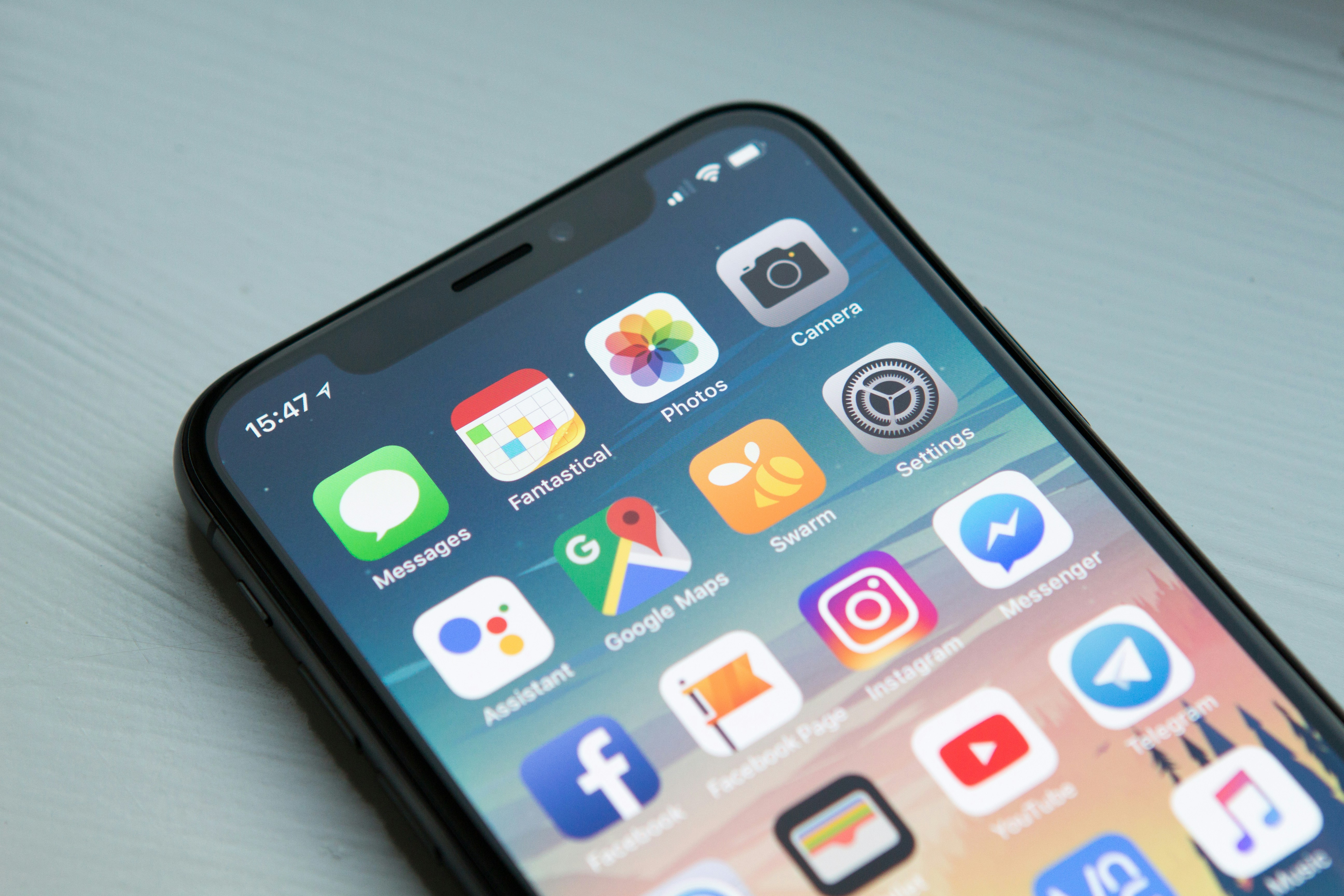
How to enable Android Developer Options tutorial screenshot

1. Reduce Animation Speed for Faster Performance

This is one of the most popular Developer Option tricks.

Android uses animations when opening apps, switching windows, or navigating menus. These animations look smooth but sometimes make the phone feel slower.

You can reduce animation speed to make your phone feel instantly faster.

Change These Settings

  • Window Animation Scale
  • Transition Animation Scale
  • Animator Duration Scale

Set all three from 1x to 0.5x.

You will immediately notice:

  • Faster app opening
  • Smoother navigation
  • Less lag feeling
  • Better overall speed

I personally use this setting on every Android phone I buy.

2. Enable Force 4x MSAA for Better Gaming Graphics

If you play Android games, this hidden option can improve graphics quality in some games.

Force 4x MSAA improves visual rendering in OpenGL ES 2.0 games.

Benefits

  • Sharper graphics
  • Better game visuals
  • Smoother edges
  • Improved gaming appearance

Important Warning

This setting may increase battery usage because the GPU works harder.

I recommend enabling it only while gaming.

Android gaming performance settings and developer options

3. Show Refresh Rate on Screen

Modern Android phones now support high refresh rates like 90Hz, 120Hz, or even 144Hz.

Inside Developer Options, you can enable:

Show Refresh Rate

This displays your screen refresh rate in real time.

It helps you check:

  • Whether 120Hz is actually working
  • Which apps support high refresh rate
  • Battery-saving refresh rate switching

It is a small but interesting feature for tech lovers.

4. Limit Background Apps

Some Android apps continue running in the background even when you are not using them. This can consume RAM and battery.

Developer Options allows you to limit background processes.

You Can Choose:

  • No background processes
  • At most 1 process
  • At most 2 processes
  • At most 3 processes

This can make older phones feel faster.

However, do not use aggressive limits if you multitask heavily because apps may reload more often.

5. Enable USB Debugging

USB Debugging is one of the most important Android features.

It allows your phone to communicate with a computer for advanced tasks.

Useful For:

  • Transferring files safely
  • Using ADB commands
  • Recovering Android devices
  • Installing apps manually
  • Screen mirroring

If you watch Android tutorials online, many tricks require USB Debugging.

Security Tip

Only enable it when needed. Turn it off afterward for better security.
USB debugging mode enabled on Android phone

6. Enable Wi-Fi Scan Throttling Control

Some Android devices constantly scan for Wi-Fi networks in the background. This improves location accuracy but can drain battery.

Developer Options allows you to reduce unnecessary scanning.

This may help:

  • Improve battery life
  • Reduce background activity
  • Save power during travel

I noticed small battery improvements after adjusting this on my secondary phone.

7. Force Dark Mode on All Apps

Many apps still do not support proper dark mode. But Android includes a hidden setting called:

Override Force Dark

This attempts to apply dark mode even to unsupported apps.

Benefits

  • Better night viewing
  • Less eye strain
  • Cleaner appearance
  • Possible battery savings on AMOLED displays

Some apps may look strange, but overall it works surprisingly well.

8. Show CPU Usage on Screen

This feature shows live CPU usage information on your display.

It is useful if:

  • Your phone overheats
  • You suspect hidden apps running
  • You test gaming performance
  • You monitor system activity

While normal users may not use it daily, it is interesting for advanced Android fans.

9. Disable Absolute Volume

Some Bluetooth earbuds or speakers have volume problems on Android.

The hidden setting:

Disable Absolute Volume

can fix audio control issues between your phone and Bluetooth device.

This helped fix low volume issues on my wireless earbuds.

10. Enable Tethering Hardware Acceleration

If you frequently use hotspot or tethering, this hidden option may improve performance and reduce CPU load.

Benefits may include:

  • Better hotspot speed
  • Lower battery drain
  • Smoother connection sharing

Not every device supports it, but it is worth checking.

Android hotspot and tethering settings screen

Mistakes You Should Avoid

Developer Options are powerful, but changing random settings without understanding them can cause problems.

Avoid These Mistakes

  • Do not change unknown settings randomly
  • Do not keep USB Debugging always enabled
  • Avoid fake “speed boost” tutorials online
  • Do not modify system settings you do not understand
  • Never enable options meant for developers only unless necessary

If something goes wrong, you can usually reset Developer Options or turn them off completely.

Can Developer Options Damage Your Phone?

Most settings are safe if used responsibly.

Simple changes like:

  • Reducing animations
  • Showing refresh rate
  • Enabling dark mode
  • Viewing CPU usage

are generally harmless.

Problems usually happen when users copy risky internet tutorials involving hidden debugging commands or unsupported tweaks.

My Personal Favorite Developer Option

If I had to recommend only one hidden Android trick, it would definitely be reducing animation scales to 0.5x.

Even older Android phones instantly feel smoother after changing this setting. It does not magically increase hardware power, but it makes the user experience feel faster.

I also frequently use Force Dark Mode because many apps still do not support proper dark themes.

FAQ

Is Developer Options safe?

Yes, most settings are safe if you only change known options.

Can Developer Options improve gaming?

Yes, some settings like Force 4x MSAA and reduced animations may improve gaming experience.

Should I keep Developer Options enabled?

Yes, you can keep it enabled, but avoid unnecessary changes.

Does reducing animation speed actually improve performance?

It mainly improves perceived speed by reducing animation delays.

Can I disable Developer Options later?

Yes. You can turn it off anytime from Android settings.

Conclusion

Android Developer Options are no longer just for programmers. In 2026, many hidden settings inside this menu can genuinely improve your phone experience when used correctly.

From faster animations and better gaming graphics to dark mode and CPU monitoring, these secret Android features can make your device feel smarter and smoother.

The key is simple:

Use only trusted settings and avoid random experiments.

If you have never explored Developer Options before, now is the perfect time to try these hidden Android tricks.


Related Posts


Labels

Android Tips, Developer Options, Android Hidden Features, Android Tricks, Mobile Tips, Android Settings, Smartphone Guide, Android 2026

Search Description

Discover the top secret Android Developer Options you should try in 2026 to improve phone speed, gaming, battery life, and overall performance safely.

Friday, May 1, 2026

Recover Deleted Android Photos Easily (2026)

How to Recover Deleted Photos on Android – Easy Methods That Actually Work (2026) 📸

Written by Adnan Patni | Founder of Mobile Tips Hub
Recover deleted photos on Android 2026 using Google Photos trash folder and recovery apps

Accidentally wiped out your important photos? 😨 Take a deep breath and relax—in a vast majority of cases, those precious memories aren't actually gone forever. You can totally get them back, you just need to know where the operating system hides them before they vanish for good.

Introduction (Read This First)

Galti se koi zaroori photo delete ho jaye to ek jhatka lagta hai. Hum aksar apne phone ki storage khali karne ke liye faltu ke WhatsApp memes, duplicate videos ya junk files delete kar rahe hote hain, aur jaldi-jaldi mein koi aisi irreplaceable photo select ho jati hai jo hamari qeemti memory hoti hai—jaise koi family trip ki picture ya kisi important kaam ka screenshot. Us waqt lagta hai ke ab sab khatam ho gaya.

Aise mein aksar log sabse badi galti yeh karte hain ke foran Play Store par ja kar 10 tarah ke bekar "Deep Recovery" apps download karna shuru kar dete hain. Yeh galti aapke data wapas aane ke chances ko mazeed kam kar deti hai.

Pehle ek simple baat samajh lein: Jab aap phone se koi photo delete karte hain, to phone use instantly hamesha ke liye khatam nahi karta. Woh storage mein us jagah ko khali show kar deta hai taake naya data aa sake. Jab tak aap phone mein koi nayi bari file (jaise naye gaane ya videos) save nahi karenge, aapka purana deleted photo background mein majood rehta hai. Is guide mein hum 7 aise asan tarike dekhenge jo aapka delete hua data 100% wapas laane mein madad karenge.

1. Check Your Native Gallery Trash Folder 🗑️

Kisi bhi advanced framework workaround ki taraf bhaagne ya pareshan hone se pehle, sabse pehle apne system ka basic database check karein. Modern Android operating systems—chahe aap Samsung Galaxy device use kar rahe hon, Xiaomi MIUI/HyperOS ho, OnePlus ho, ya Google Pixel—sabme desktop computer ke 'Recycle Bin' ki tarah ek default system safety net hota hai.

Jab aap gallery app se koi photo remove karte hain, to system use background repository folder mein shift kar deta hai. Phone ke brand ke mutabiq aapki media files wahan **30 se 60 dino tak** dynamic layout mein temporary safe rehti hain, jiske baad system unhe resource management ke tehat permanent auto-purge karta hai.

Execution Path: Open Stock Gallery App → Go to Albums Menu/Three Dots → Open Trash / Recently Deleted Folder
💡 Pro Diagnostic Tip: Lagbhag 80% accidental image deletion ke cases isi simple method se single minute ke andar solve ho jate hain. Bas folder kholein, files select karein aur Restore trigger daba dein.

2. Recover Directly via Google Photos Cloud Bin ☁️

Agar aap apne device mein primary cloud engine ke taur par Google Photos use karte hain, ya phir yeh app aapke background system mein silently photo synchronization run kar rahi hai, to aapki pareshani kafi hadd tak khatam ho sakti hai. Google ka cloud architecture ek independent storage recycling process run karta hai jo hardware storage crash hone par bhi kam aata hai.

Agar image capture ke waqt aapka internet backup cloud switch active tha, to local internal memory se file delete ho jaane par bhi woh cloud server par safe rehti hai. Hatta ke agar aapne Google Photos app ke andar se bhi use delete kiya hai, tab bhi woh database permanent delete hone ke bajaye direct Cloud Trash mein save ho jata hai jahan yeh pooray 60 days tak rehta hai.

Execution Path: Open Google Photos App → Tap the "Library" Tab at the bottom → Select the "Trash" Icon
Google Photos recovery process dunya ka sabse secure aur reliable cloud restoration mechanism hai. Target asset par long-press karke aap use wapas feed mein restore kar sakte hain.

3. Deep-Dive Into Brand-Specific Cloud Backups 🔄

Jab hum koi naya smartphone buy karke unbox karte hain, to initialization setup ke dauran har brand apna proprietary cloud link account register karne ki recommendation deta hai (jaise Samsung Cloud, Mi Cloud, ya Oppo Cloud). Aksar users ise active karke bhool jate hain, jabki yeh networks silently kafi zaroori snapshots backup save kar rahe hote hain.

Agar aap Samsung ecosystem par hain, to system settings ke top profile panel mein ja kar **Samsung Cloud / OneDrive Linked Integration** check karein. Xiaomi users settings mein ja kar **Mi Cloud backup activity log** check kar sakte hain. Agar aapke phone ne raat ke waqt Wi-Fi data synchronization ke tehat snapshot save kiya hoga, to aap kuch din purane restoration point file ko select karke poora image stack wapas system hardware mein load kar sakte hain.

4. Use System File Manager to Uncover Hidden Files 📂

Kafi baar aisa hota hai ke aapki photos database se actual wipe out nahi hoti, balki kisi sudden software update crash, third-party gallery application bug, ya temporary file configuration mismatch ki wajah se woh normal user interface gallery screens se hidden ho jati hain ya unka extension map badal jata hai.

Is problem ko solve karne ke liye apne storage device ka default native file explorer (jaise Files by Google ya native File Manager) open karein, uski settings dashboard parameter panel par ja kar **"Show Hidden System Files"** setting ko instantly turn on kar dein. Ise enable karne ke baad, hidden cache maps ko dhoodhne ke liye niche diye gaye hardware paths ko deeply evaluate karein:

  • DCIM > Camera: Yeh aapke original uncompressed optical camera captures ka core engine block folder hota hai.
  • Pictures > Screenshots: System rules ke tehat kafi baar screenshots directory separate database pipeline par run karti hai.
  • Android > Data: Is structural layout directory ke andar un specific chat apps ya media managers ke storage folders ko check karein jahan thumbnails cache block save rehte hain.

5. Deploy Trusted On-Device Recovery Applications 🔍

Agar aap upar diye gaye saare default trash modules aur cloud configurations run karne ke baad bhi empty layout dekh rahe hain, to ab aapko dedicated low-level storage data cluster scanning tool ki zaroorat padegi. Lekin yaad rahe, agar aap Play Store par "Photo Recovery" search karenge to hazaron shady, ad-heavy aur fake utilities milengi jo data rescue ke bajaye sirf memory fill karti hain.

Aapko bina bhatke sirf trusted aur community-verified standalone utilities par hi depend karna chahiye, jaise **DiskDigger Photo Recovery** ya **Dumpster**. Yeh applications device ke local volatile memory clusters ko block-by-block trace karti hain aur temporary database logs se image ke structural thumbnail elements aur hidden raw file traces extract karke aapke samne screen par display kar deti hain.

⚠️ System Security Alert: Sirf unhi programs ko use karein jinki downloading count millions mein ho. Kabhi bhi kisi unknown third-party tool ko deep internal device root permissions na dein, kyunki isse data theft aur malware installation ka high risk rehta hai.

6. Extract Missing Media from Hidden WhatsApp Folders 💬

Hamare smartphone gallery ke kafi saare crucial graphics aur photos hamare camera lens se click nahi kiye gaye hote, balki woh hamare family threads, close friends ya business groups ke zariye messaging apps (jaise WhatsApp) par receive hote hain. Agar aapne accidentally puri chat database timeline ya chat screen delete kar di hai, tab bhi unka media framework local directory structure se gayab nahi hota.

Android files optimization architecture ke tehat WhatsApp har ek received aur sent file ka complete data asset system storage space ke andar mehfooz rakhta hai. File manager open karke niche diye gaye structural pipeline control parameters par navigate karein:

File Directory: Internal Storage → Android → Media → com.whatsapp → WhatsApp → Media → WhatsApp Images

Is system folder block ke andar aapko do hidden subfolders milenge: **"Sent"** aur **"Private"**. WhatsApp default database rules ke mutabiq aapke personal chat flow se hatai gayi files in directory maps mein bilkul secure uncompressed file formats `.jpg/.png` mein chhor deta hai jahan se aap unhe wapas copy kar sakte hain.

7. Run a Professional Computer-Based SD Card Scan 💾

Agar aapke smartphone device ke andar external expandability option maujood hai aur aapne apni photography portfolio storage location ek micro-SD card par maps kar rakhi hai, to aapki file recovery rate lagbhag 95% tak badh jati hai. Lekin yahan pro tip yeh hai ke storage intensive heavy tools mobile processor par chalane ke bajaye aapko desktop extraction methods use karne chahiye.

Apne micro-SD card ko mobile memory compartment se safely eject karein, card reader adapter mein insert karke use kisi laptop ya desktop Windows/Mac computer system ke sath connect karein. Iske baad computer par high-end standard forensic recovery engines install karein, jaise **Recuva** (completely free for Windows systems) ya **Disk Drill** (for advanced macOS clusters). Computer engines ki analytical processing power mobile chips se kai guna zyada hoti hai, jo damaged file allocation table (FAT/exFAT) ko bariki se scan karke file track wapas nikal lete hain.

Crucial Execution Rule: Jaise hi aapko realize ho ke memory card se files missing hain, instantly card ko phone se bahar nikal dein. Yeh command Android cache management system ko un fields par system background cache overwrite karne se completely rok deti hai.

Golden Rules to Follow After Deleting a Photo ⚠️

Agar aap waqai chahte hain ke data sector maps se aapki images permanently replace na hon, to accidental deletion activity detect hote hi in system configurations ko force implement karein:

  • Stop Snapping Fresh Captures: Naye video clips shoot karna ya photos click karna directly hardware controller ko operational instruction deta hai ke woh purane marked available data blocks par naya dynamic pixel blocks code save kar de, jisse purani image permanently crush ho jati hai.
  • Activate Instant Airplane Mode: Wireless mobile connectivity aur internet data processing links continuously application tracking updates, cache synchronizations aur logging parameters download karte hain. Device ko completely isolation track par rakhna safe hai.
  • Terminate Background Multitasking: Heavy graphic utilities running, heavy data downloads ya game updating frameworks file systems ko continuously rewrite karte hain, jisse block reconstruction damage ho jata hai.

Android Photo Recovery Mastery (FAQs)

Kya un photos ko wapas laya ja sakta hai jo kai mahine pehle permanently delete ho chuki thin?

Yeh completely is baat par depend karta hai ke un mahino mein aapne phone memory kitni utilization par rakhi. Agar storage completely full ho chuki thi aur aapne heavy high-definition media process kiya tha, to hardware sectors par memory clusters overwrite ho jane ki wajah se physical data extraction aam software frameworks se na-mumkin ho jata hai.

Kya Android phone se deleted photos rescue karne ke liye phone ko root karna bilkul zaroori hai?

Bilkul nahi! 2026 mein system sandboxing aur cloud security itni advance ho chuki hai ke aap default trash logs execution, local architecture diagnostics aur normal non-root cache scanners (jaise DiskDigger basic mode) se warranty compromise kiye bina hi kafi aaram se data fetch kar sakte hain.

In pareshaniyon aur tension se hamesha ke liye bachne ka sabse perfect tarika kya hai?

The ultimate ironclad protection framework is redundancy configuration system. Apne phone mein ek automatic automated cloud optimization loop schedule karke rakhein, jahan Google Photos, Microsoft OneDrive ya Dropbox aapke Wi-Fi charging slots par active hote hi har ek naye picture profile backup ko independent servers par deploy kar dein.

Final Words 📸

Galti se delete button hit ho jane par kisi ka bhi cold sweat nikal jana bilkul natural hai, lekin modern dynamic data structural designs ki wajah se media files ko rescue karna bilkul possible aur accessible hai—ba-shart ye ke aap thande dimaag se aur bina time zaye kiye sahi performance parameters follow karein.

Is incident ko ek productive wake-up call samjhein! Aaj hi thoda time nikal kar apni synchronization options aur internal backup metrics ko perfectly double-check kar lein. Kya in me se kisi systematic option ne aapki memory wapas laane mein help ki? Aapka experience kaisa raha, mujhe neeche setup comments database section mein zaroor share karein! 😄


Useful Link: How to Recover Deleted Photos from Any Smartphone | by Medium Mobile Shop | Medium

7 Android Speed Boost Tricks 2026

Comprehensive Performance Guide 2026

Android Phone Slow Ho Gaya? 7 Detailed Speed Boost Solutions

Written by Adnan Patni | Founder of Mobile Tips Hub

Expert-level optimization techniques jo aapke smartphone ki performance ko 200% tak barha sakti hain.

Android smartphones waqt ke sath slow kyun ho jate hain? Iski sabse badi wajah hardware ki purani hona nahi, balki software mein jama hone wala kachra (cache), background running activities aur memory mis-management hoti hain. Agar aapka phone baar baar lag hota hai, apps bohot der se open hoti hain ya heavy multitasking mein frame drops ka samna karna padta hai, to ye technical guide sirf aapke liye hai. Maine Mobile Tips Hub par in 7 deep-optimization methods ko detail mein share kiya hai jo real life mein 100% work karte hain.

Slow Android Optimization Guide

1. System Storage Audit Aur Deep Cleaning

Aapke smartphone ka Android Operating System (OS) tabhi smoothly perform karta hai jab usay technical process chalane ke liye kafi "breathing space" milti hai. Agar aapki internal storage 85% se zyada full ho chuki hai, to chip par data read aur write karne ki speed drastically slow ho jati hai, jisse system files freeze hone lagti hain.

Kaise Clean Karein? 1. Sabse pehle Settings > Storage mein jayein aur gahraee se dekhein kaunsi category (Photos, Heavy Videos ya Large Apps) sabse zyada space occupy kar rahi hai.
2. 'Large Files' tool ko use karke badi video files ko identify karein aur unhe Cloud Storage (Google Drive) ya offline SD card mein safe transfer karein.
3. WhatsApp Media folder ko manually file manager se check karein, kyunki group chats mein aane wali clips aur duplicate documents aksar chupke se GBs mein space gher lete hain.
💡 Real Storage Tip: Apne device mein kam az kam 15-20 GB internal storage ko hamesha khali rakhein taake system software background tasks aur new app security updates ko aaram se process kar sake.

2. Technical Cache Management (Deep Cleaning)

Cache files darasal temporary data blocks hote hain jo alag-alag applications apni loading speed ko tez karne ke liye storage mein save karti hain. Lekin problem tab shuru hoti hai jab ye data bohot zyada purana, un-organized ya corrupt ho jata hai. Aise mein yeh phone ko fast karne ke bajaye system memory par load badha deta hai.

Individual App Cleaning Method:

Aapko kisi bhi bekar software cleaning app ko download karne ki zaroorat nahi hai. Har heavy application (jaise Facebook, Instagram, YouTube, aur Google Chrome) ka settings mein ja kar cache manually clear karna hi sabse safe aur power-packed tareeqa hai. Is operation se aapka koi bhi personal data ya accounts delete nahi hote, balki bekar ki files kachre ki tarah saaf ho jati hain.

Clearing Android Cache

3. Developer Options: The Secret UI Speed Hack

Yeh ek aisi advance setting hai jo aapke device ke hardware core ko chede bina, uske pure structural "Visual Speed" ko double kar deti hai. Is tweak ko apply karne ke baad aapke phone ke hardware animations ka processing duration adha ho jata hai, jisse aisa feel hota hai ke apps ek jhatke mein open ho rahi hain.

Setting Steps to Enable UI Hack: 1. Settings > About Phone mein jayein aur wahan diye gaye 'Build Number' par continuously 7 baar tap karein. Aapka developer mode lock khul jayega.
2. System configuration mein wapas aa kar 'Developer Options' menu ko open karein aur thoda niche scroll karein.
3. Wahan par Window Animation Scale, Transition Animation Scale, aur Animator Duration Scale ko dhyan se dhoodh kar unki default value '1x' se hata kar direct '0.5x' par lock kar dein.

4. Background Process Control Aur RAM Optimization

Aksar hum jab kisi app se bahar aate hain to lagta hai ke kaam khatam ho gaya, lekin wo background mein chip ki processing power aur hardware memory (RAM) ko lagatar consume karti rehti hai. Is unnoticed leakage ko block karna device ki heat aur speed dono ke liye kafi zaroori hai.

Aapko usi Developer Options ke andar thoda aur niche scroll karne par 'Background Process Limit' ka main setting milega. Ise automatic 'Standard Limit' se badal kar 'At most 3 processes' par select kar dein. Iska fayda yeh hoga ke jab aap koi game khel rahe honge, to background mein chalne wali fuzool apps memory ko crash nahi kar payengi.

5. Disable Bloatware Aur Pre-Installed System Apps

Bloatware un unwanted applications ko kaha jata hai jo mobile companies phone bechte waqt system ke andar fix karke bhejti hain. In mein se aksar apps aap normal tareeqe se uninstall nahi kar sakte, jo din raat system files ke sath background data sync karti rehti hain.

Iska sabse behtar upaya yeh hai ke aap device Settings > Apps mein jayein, us partcular bekar app ko open karein aur use direct 'Disable' kar dein. Disable karne se woh app backup process se hamesha ke liye freez ho jayegi aur system memory bilkul light-weight ho jayegi.

🚀 Pro RAM Tip: Jitni kam system apps running state mein hongi, aapke heavy tasks aur messaging apps ka navigation utna hi lightning-fast aur intuitive perform karega.

6. Browser Optimization (Specially for Chrome Users)

Ek survey ke mutabiq lagbhag 90% Android users internet surfing ke liye default Google Chrome browser ka hi use karte hain, jo kafi zyada RAM aur hardware energy consume karne ke liye jana jata hai. Agar aapka net chalate waqt phone rukta hai, to turant ye steps follow karein.

Chrome app open karke uski settings mein jayein, 'Privacy and Security' block ke andar ja kar 'Preload pages' feature ko check karein. Agar woh extended mode par hai to use standard par customize karein aur koshish karein ke browser mein ek sath 10-15 se zyada bekar tabs open na pade rahein.

7. Factory Reset (The Ultimate Last Resort)

Agar aapne upar batayi gayi tamam advanced tricks ko dhyan se apply kar liya hai aur phir bhi phone ka slow down browser crash ya lag theek nahi ho raha, to iska matlab hai ke deep core system files mein koi hidden malware ya operating system bug aa chuka hai jo normal configuration se theek nahi ho sakta.

Aise complex scenarios mein Factory Data Reset hi aakhri rasta bachta hai jo system storage ke purane structural framework ko wipe out karke aapke software ko bilkul brand-new launch state mein le aata hai.

⚠️ Extreme Warning: Factory reset process ko start karne se aapke mobile ka tamam internal data (including contacts, login credentials, downloaded files aur personal gallery) hamesha ke liye remove ho jayega. Reset ka button dabane se pehle Google Drive par apni har zaroori file ka proper backup zaroor le lein.

Advanced FAQ: Common Performance Doubts

Smartphone thode mahino ke baad automatic slow kyun hone lagta hai?

Waqt ke sath applications ke naye updates heavy coding ke sath aate hain jo purane hardware par load dalte hain. Iske sath hi local cache files ka accumulate hona aur low storage cache errors iski sabse main wajah hain.

Kya Play Store par maujood RAM expander aur cleaning apps waqai kaam karti hain?

Bilkul nahi! Ulta aisi third-party cleaning apps screen par fuzool ads dikhati hain aur device memory ko background mein mazeed slow karti hain. Android system ka apna built-in tools aur official 'RAM Plus / Virtual RAM' feature hi sabse best aur safe hai.

Legal Disclaimer: Mobile Tips Hub blog par share ki gayi tamam core technical maloomat aur data settings sirf educational aur informational purpose ke liye hain. Developer settings aur Factory data reset features ko hamesha apne risk aur samajhdaari par use karein. Kisi bhi qism ke temporary data loss, physical loop error ya accidental hardware glitch ke liye platform team zimmedar nahi hogi.
© 2026 Mobile Tips Hub | Content Design & Strategy by Adnan Patni

Google Search Console Indexing Problems: Complete Solution Guide

Google Search Console Indexing Problems: Complete Solution Guide (2026) Fix Crawled Currently Not Indexed, Discovered Currently Not Inde...